A Feedback Button Your Visitors Open When They Have Something to Say
What Is a Feedback Button?
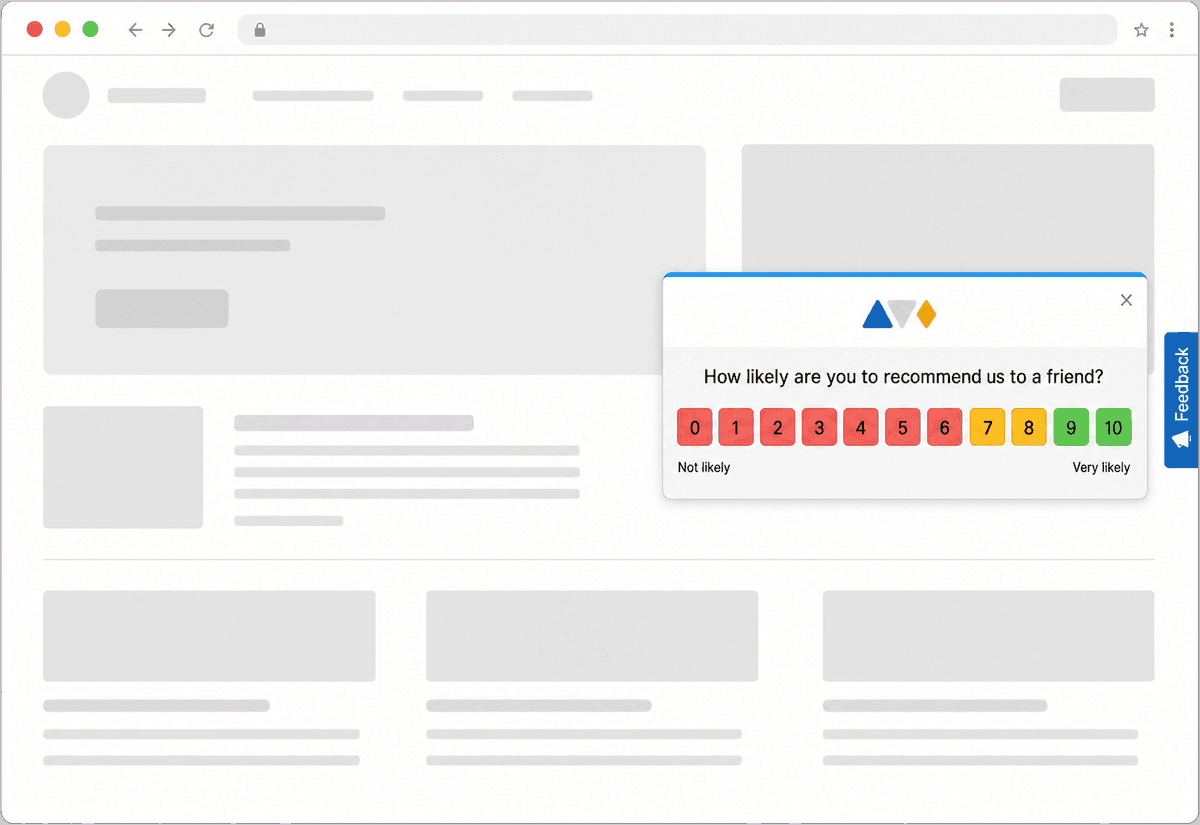
A feedback button is a small, persistent tab or button that sits on the edge of your web page. It is visitor-initiated: nothing pops up on its own, nobody is emailed, nothing is scheduled. The visitor decides when to open it, and when they do, a short survey appears where they can leave a rating and a comment. People describe the same thing as a feedback tab, a feedback widget, a website feedback widget, a "give feedback" button, an always-on survey or passive feedback collection. In Retently they are all the Feedback Button.
The button answers a different question than your scheduled surveys do. A scheduled or event-triggered survey asks everyone, at a moment you pick, and measures how your customer base feels. The feedback button listens for the people who have something to say right now: the visitor who hit a bug on the checkout page, the prospect with a pricing question, the customer who could not find the answer in your help center, and the one who just wants to say thanks. None of those moments line up with a survey cycle, so without a button most of them are simply lost.
The Feedback Button is installed through the same Retently website script used for in-app and embedded surveys, and it works for identified visitors as well as anonymous ones. If the visitor is a known customer, the response is tied to their record; if not, it is stored as anonymous feedback. Either way it lands in the same reports, with the same AI topic and sentiment analysis, alerts, follow-ups and integrations as feedback from email, link, in-app or embedded surveys.
Why Add a Feedback Button to Your Website
A button costs your visitors nothing until they need it, and then it is exactly where they expect to find it.
Hear what no scheduled survey would catch
Bug reports, confusing copy, a missing payment method, a pricing question, a feature idea, a compliment for the support team. These show up when they happen, not when your quarterly NPS goes out.
Because the visitor chooses the moment, the comment usually describes a specific page and a specific problem, which makes it far easier to act on than a general score.
No list, no schedule, no setup per visitor
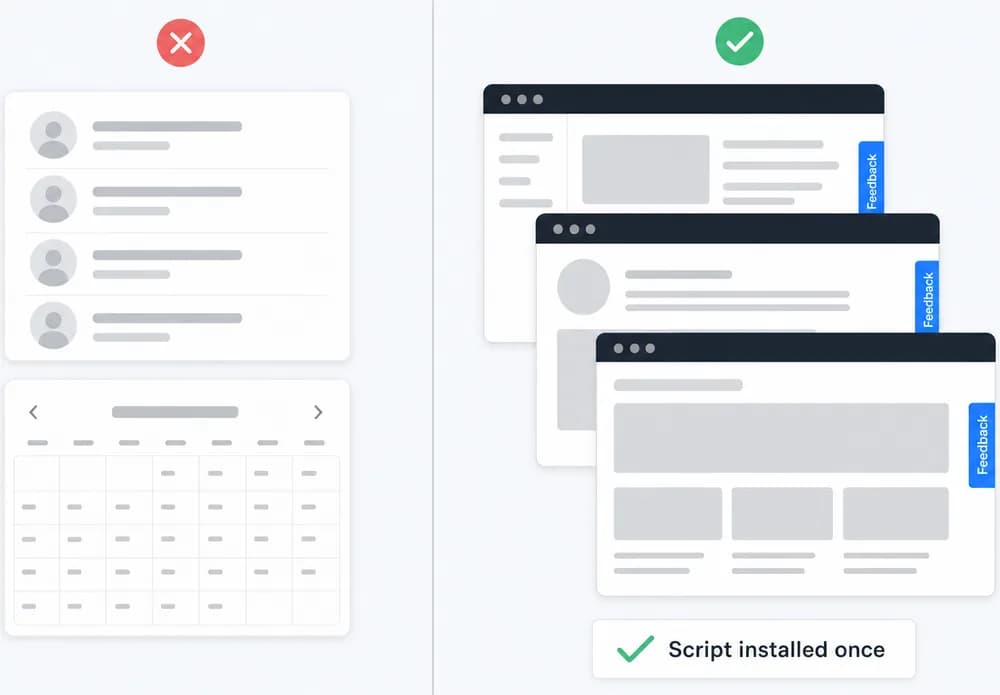
You do not import contacts or decide who gets surveyed. Install the website script once, turn on the button, and it is available to every visitor on every page where the script runs.
It works for logged-in customers, whose responses are linked to their profile, and for anonymous visitors, such as prospects on your pricing page or readers of your help center.
Same templates, branding and metrics
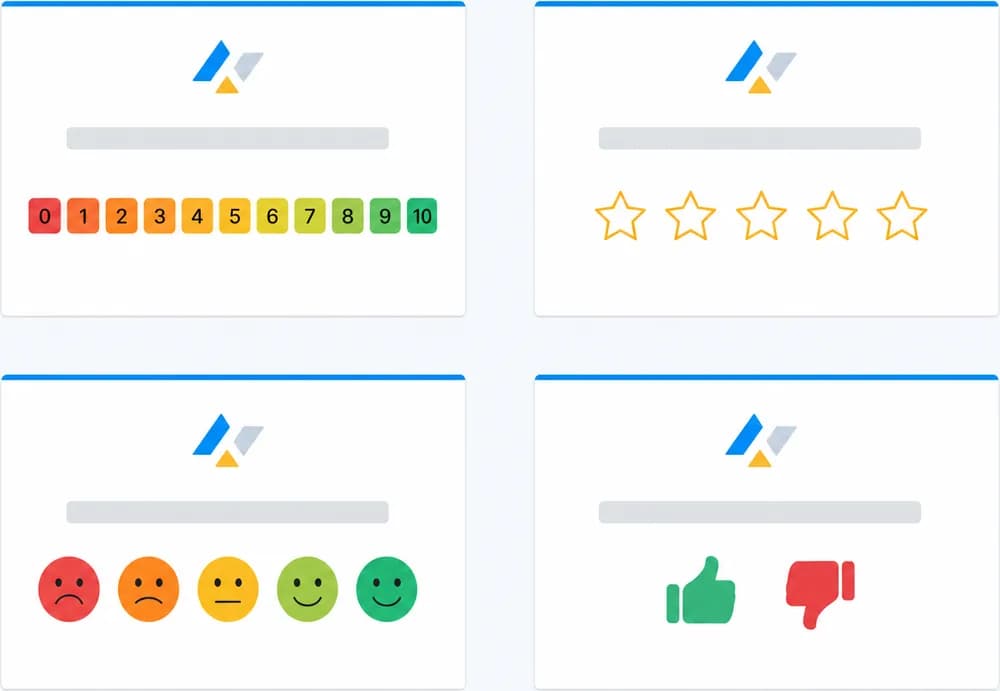
Choose NPS, CSAT, CES, 5-star, emoji, thumbs up/down or Product-Market Fit, add follow-up questions, and apply your logo, colors and language. Templates are managed in the same place as your other surveys.
Follow-up questions can branch by score, so a low rating can ask what went wrong while a high rating can point to a Google reviews link on the thank-you page.
Runs alongside your scheduled surveys, not instead of them
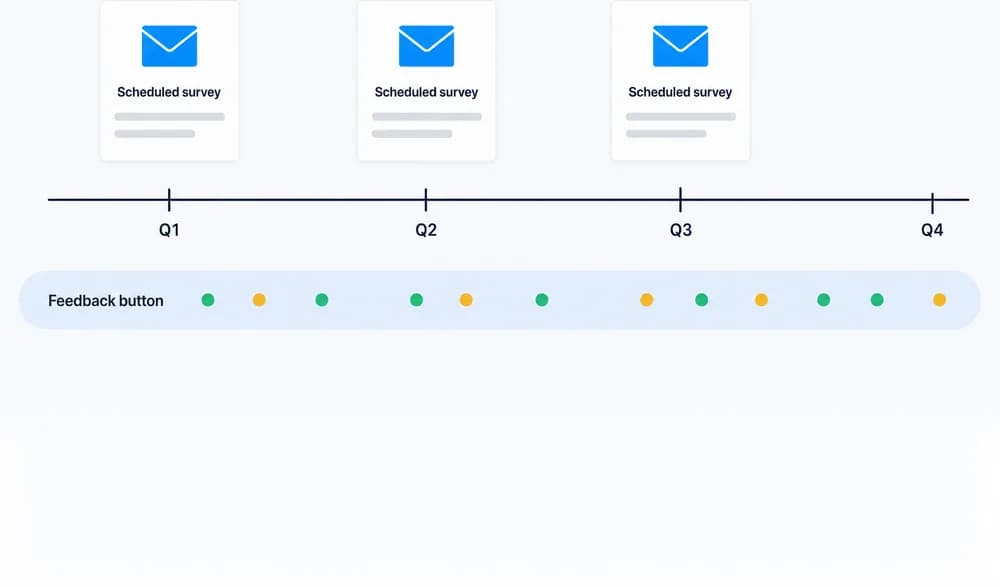
The button hears from people who have something to say right now. Scheduled email and in-app surveys measure everyone else on a cadence you control. Neither replaces the other.
Run both: the schedule gives you the score and the trend, the button gives you the specifics in between. Both land in the same reports, alerts and follow-up workflows.
Common Ways to Use a Feedback Button
Bug and usability reports
Let visitors flag a broken page, a confusing form or a typo the moment they run into it, with the page context still fresh.
Pricing and plan questions
Capture the objections and questions prospects have on your pricing page before they leave without signing up.
Help center gaps
Find out which articles do not answer the question and what readers were actually looking for.
Checkout and order friction
Hear about missing payment options, shipping confusion or cart problems from shoppers who would otherwise just abandon.
Always-on feedback in your product
Give logged-in users a permanent place to share ideas and complaints between your scheduled in-app survey cycles.
Unprompted praise
Collect the thank-you notes and compliments customers want to leave, and route happy visitors to a review link.
How the Feedback Button Works in Retently
- 1
Install the Retently website script
Add the script to your site once. The same script powers in-app surveys, embedded surveys and the feedback button, so if you already use one of them there is nothing new to install. - 2
Create the survey and pick a template
Choose the metric, write the follow-up questions, and apply your branding and language. Manage the template in the same place as your other surveys. - 3
Turn on the button
Enable the Feedback Button display for the survey. The tab appears on the pages where the script runs, for identified and anonymous visitors alike, with no send list and no schedule. - 4
Act on what comes in
Responses show up in your reports with AI topics and sentiment. Route them with alerts, automated follow-ups, webhooks and CRM or helpdesk integrations.
Feedback Button vs. Scheduled Surveys: Use Both
The feedback button and your scheduled or event-triggered surveys answer different questions, and the button is not a replacement for them. A scheduled survey goes to everyone you choose, at a moment you choose, so the result is a measurement of your whole customer base. The button only hears from visitors who decide to click, which means the people with the strongest opinions right now: someone stuck, someone frustrated, someone delighted.
That makes button feedback excellent for finding problems and ideas, and a poor way to track a trend. Keep your scheduled and event-triggered surveys for the numbers, and add the button so the moments in between are not lost.
The button is also different from an embedded survey, which renders inline as part of the page content and is always visible, and from an in-app survey, which pops up on its own based on a schedule or an event. The feedback button stays out of the way until the visitor opens it.
Combine It With Other Survey Channels
Every channel feeds the same contact records, reports and automations, so you can mix them freely and compare results side by side.